

Let’s face it, generative AI is cool. I can ask a question and typically get a pretty good answer, but in terms of practicality, it would be way more useful to get answers based on data I have. That’s where Retrieval Augmented Generation (RAG) comes into play. Essentially, it’s the method used to give an LLM like Meta’s Llama or Cohere’s Command R the data it needs to answer questions about your own data.
Oracle has answered the call to offering these capabilities in a variety of ways. Oracle Database 23ai offers a whole bunch of really interesting options, including its capability to operate as a vector store and even use that vector information in SQL queries. Oracle has also bolstered Oracle Cloud Infrastructure (OCI) with a Generative AI Agent that can leverage a variety of data stores, like Object Storage, OpenSearch, and Oracle Database 23ai.
I recently took the opportunity to leverage the AI Agent with Object Storage to enhance the help functionality of website developed in python using the Django framework. The goal was take the series of online help pages and leverage them as a source for AI to provide contextual answers to users’ questions.
Getting Started
To get rolling, I started with the Oracle documentation for the Generative AI Agent Service. The process is fairly straightforward and the most amount of time I spent on the effort was modifying the website to use the capability. It’s critical to understand the regions where this is available, as of the time that this article was written, the only region where it is available is Chicago (US Midwest). The high-level steps to the process are:
- Create an Object Storage Bucket
- Load it with documents
- Create a Knowledge Base using the Object Storage Bucket
- Create an Ingestion Job
- Create an Agent that uses the Knowledge Base
I’ll assume that you know how to create an Object Storage bucket and how to upload documents to that bucket. There are a few things to keep in mind while using this storage option. First, the documents you upload must either be PDFs or plain text files. Second, you can identify a source URL for the document. This provides the LLM with data it can reference when providing source information to the user. You can find more details on that here.
Creating a Knowledge Base
Once you’ve got your documents loaded to your object storage bucket, you’ll need to go to the Generative AI Agent service in the Analytics and AI menu of OCI. From there you start by creating a Knowledge Base. You can get there through the Knowledge Bases link. From here you’ll provide information about Knowledge Base, including specifying the bucket where you put your documents. You can either use the entire bucket, or specify an object prefix that allows you to isolate the documents referenced. You can even specify multiple prefixes.

Creating an Ingestion Job
Once the Knowledge Base is created, you’ll need to create a new Ingestion Job. This is essentially executing an inferencing job that will collect the data you provided into a vector store that the LLM can reference. You can create an Ingestion Job by navigating to your new Knowledge Base. From there you’ll find a set of data sources (the object storage bucket(s) you specified). Drilling into the Data Source will provide you with an option to create an Ingestion Job. Each job runs one time, so if you add more documents later, you must run a new Ingestion Job.
Creating the Agent
Once you’ve executed the Ingestion, you are now ready to define the agent. You can get to the page by navigating from the Generative AI Agent home screen into the Agents page on the left side of the screen. When you setup your agent, you’ll be able to specify the Knowledge Base(s) to use with the agent. In order to access the agent later using an API or SDK, you’ll need to create an endpoint. You can do this later on the Agent page, but you can also choose to have one created for you on the Agent creation page.

Using the Agent
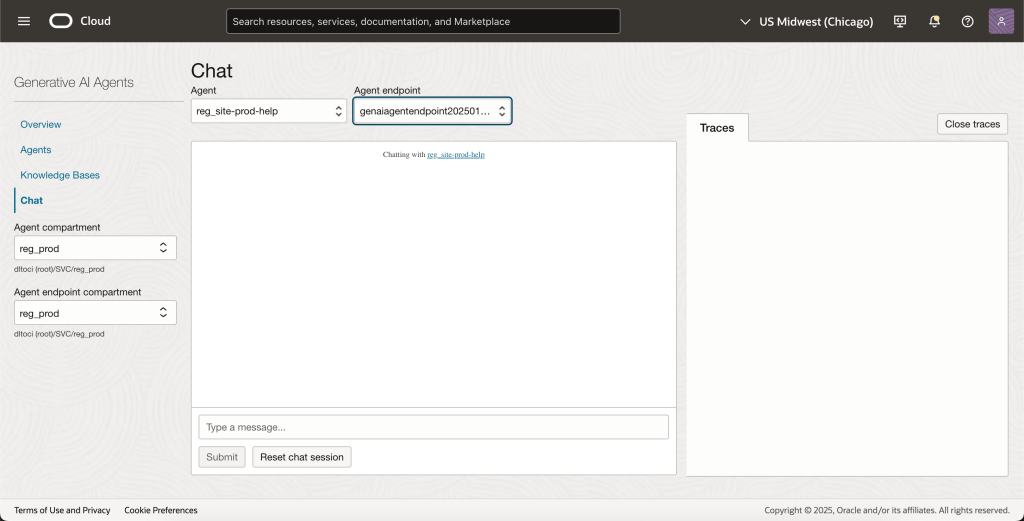
OCI Chat
The fastest way to get using your Agent is to use the chat function in the OCI console. This is a great way to run tests and simply get to know the Agent. It’s also a good method to start working on your prompt engineering. This is important because you should consider how your users will leverage the Agent and determine if it makes sense to add additional context when submitting a user request to the Agent.
Python SDK
For using the Agent with our website, I chose to use the OCI Python SDK. Frankly, I find using the SDK greatly simplifies things like authentication. To get started, I chose to create a command line chatbot to test the functionality of the code before integrating it into the website. You can find that chatbot code here.
A few notes on some items I struggled with initially.
- When creating the agent clients, you have to specify the service endpoint. This differs from some other client creations, such as instances or storage. If you use this code, be sure you confirm the endpoints to use based on the region you’re leveraging to create your agent.
- When using the agent, you need to check if a session should be created. In the code, I use a function to check if a session is need (yes in this case) and if so, it creates the session.
Another additional process I created was a simple function that kicks off a new Ingestion Job. Right now I run that on-demand, but you could certainly use the Resource Scheduling service or even use the Event Hub to kick of the job when new objects are added to your bucket.
Summary
At the end of the day, creating the Agent itself took all of about 30 minutes. The longest part of the process was waiting for the ingestion job to complete. If you know anything about inferencing, you can probably appreciate that this is an intense process. The results have been extremely consistent, and what’s more, when the Agent isn’t sure that it can find the right answer, it tells you that in the response.
My warning here is the same as that of all AI. Make sure you understand the context and check the sources provided during the execution. It’s always possible that the LLM pulled data that isn’t exactly what you’re referring to, especially if your question is vague.
Special Thanks
A special thanks goes out to the following people for helping me figure out some of the code nuances that I got stuck on:
- Vasu Rangarajan, Oracle Cloud Infrastructure
- Aditya Banerjee, Oracle Cloud Infrastructure
- Amir Rezaeian, Oracle Cloud Infrastructure
 The OCI Tool